
|
Navigation from your Home screen:
 >

Use the mobile app to edit a unit record's information or status, reset maintenance intervals, and view it on a map, if you use TSD's Telematics integration.
How to Edit a Unit on Mobile
Quick Steps
| 1 |
Tap |
|
| 2 |
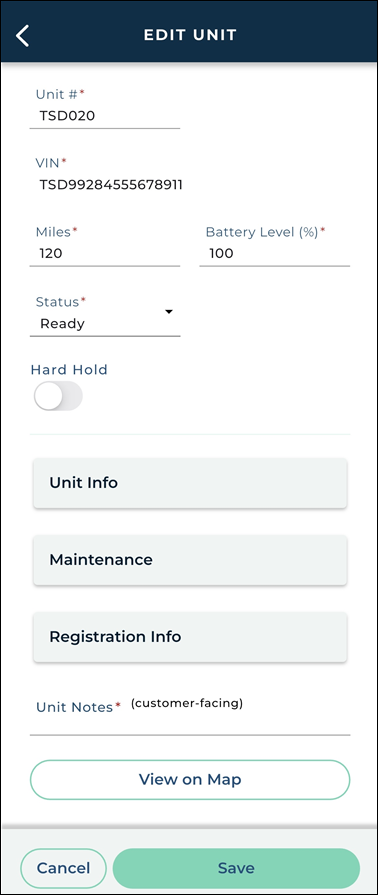
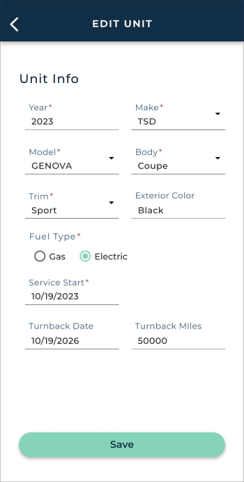
Edit unit information in any sections that apply: Unit Info, Maintenance, Registration Info. |
|
| 3 |
Tap within each section edited. |
Full Walkthrough
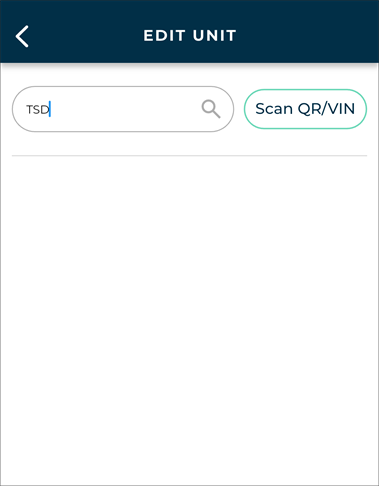
1. Find the Unit You Want to Edit
- Tap > .
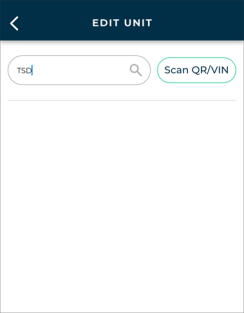
- Look up the unit by VIN, Tag Number, Unit Number, or License Plate Number, or tap to scan the unit's QR Code or VIN barcode.
Search for a unit
2. Edit Unit Information.
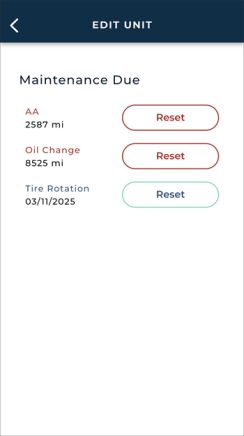
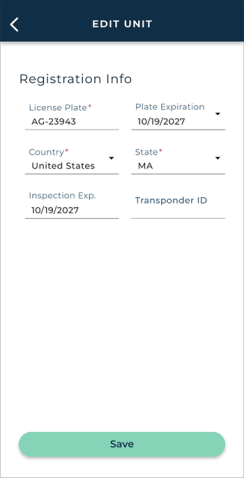
The Edit Unit screen consists of key unit information, such as its Unit #, VIN, Miles, Fuel / Battery Level, and Status, as well as several sections.
Hover to view the full-sized image.
When you're finished editing this unit record, tap .
Unit Info
Maintenance
Registration Info
Additional Features & Integrations
Some features may be available on this screen of the mobile app depending on which integrations are connected with your location.
Interested in learning more about any of these integrations? Contact your TSD Sales Representative at sales@tsdweb.com to get started.
Telematics
Telematics add a new dimension to your fleet management with real-time GPS fleet tracking. See "Telematics (Mobile App)" for more information.
- Automatic updates to mileage and fuel / battery level. A unit's latest mileage and fuel are filled in automatically.
- View the unit's location on a map. Look up the unit, then tap .
© 2026 TSD Rental, LLC